
Dynamic Data
Sends a compiled report with custom-crafted data, on demand and/or on a recurring schedule.
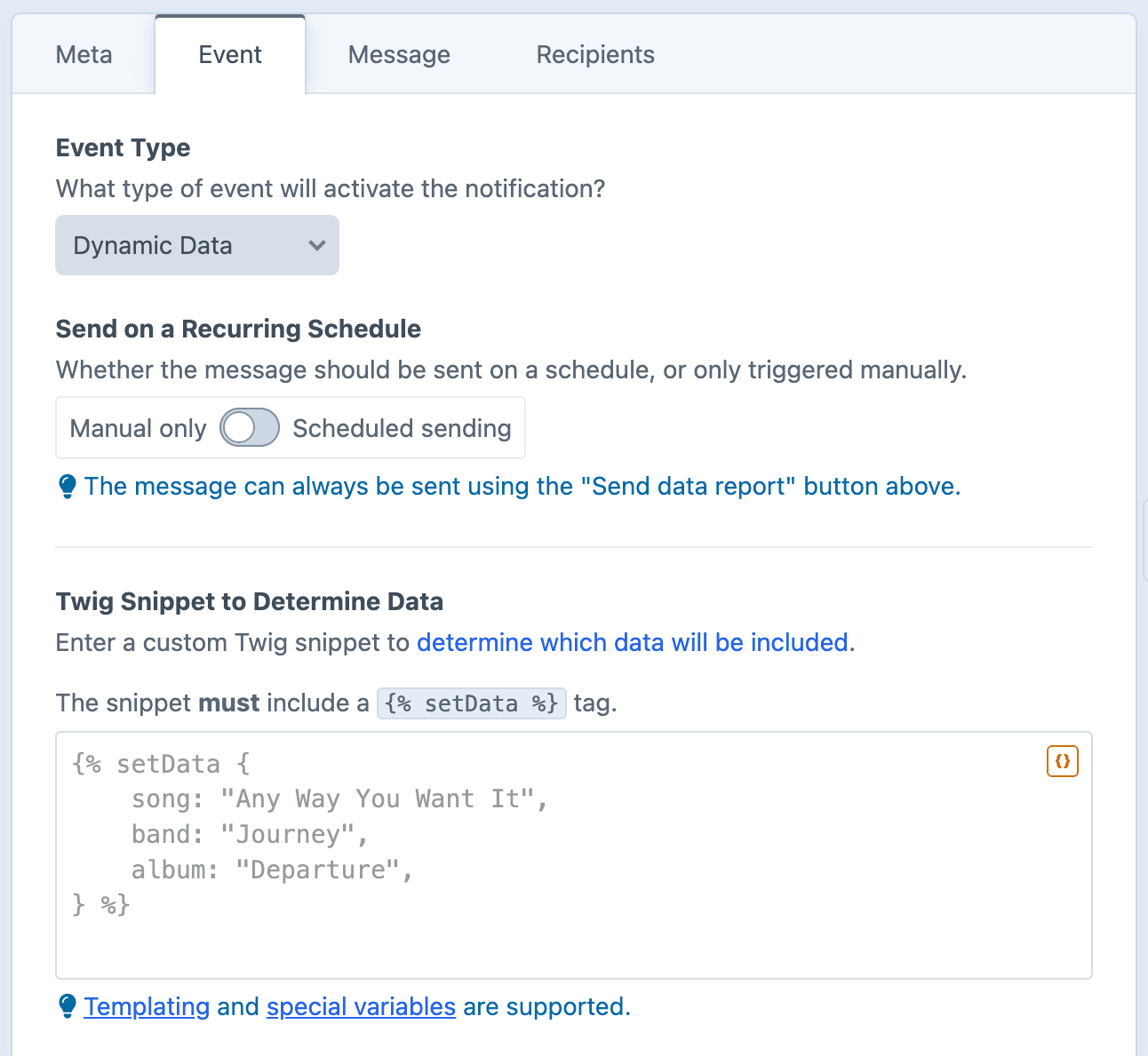
Dynamic Data lets you construct a custom data set. You write a Twig snippet which gathers whatever content you need, push the values into a data variable via the {% setData %} tag, then read them back within the message body.
⚠️ Security Warning - Permission Required
Users without the "Use the Dynamic Data type" permission will not have the option to select the "Dynamic Data" type.
Since authoring Dynamic Data snippets involves executing custom Twig at send time, it is first necessary to enable this permission for users who require it. Grant it only to highly-trusted users.
Configuring Dynamic Data
The snippet must call the {% setData %} tag at least once.
For example, imagine our website has a song catalog. The following snippet would gather every song added within the past week, then build a list with each song, band, and album:
Dynamic data snippet:
{# Get every song added in the past 7 days #}
{% set songs = craft.entries
    .section('songs')
    .dateCreated('>= ' ~ now|date_modify('-7 days')|atom)
    .all() %}

{# Compile a list of recently added songs #}
{% set recentSongs = [] %}
{% for entry in songs %}
    {% set recentSongs = recentSongs|merge([{
        song: entry.title,
        band: entry.band,
        album: entry.album,
    }]) %}
{% endfor %}

{# Prepare data for the message body #}
{% setData {
    recentSongs: recentSongs,
} %}
Then within the message body, we can loop over the array data to list each song:
Message body snippet:
New songs added this week:

{% for item in data.recentSongs %}
- {{ item.song }} by {{ item.band }} ({{ item.album }})
{% endfor %}
When {% setData %} is called multiple times
You can call {% setData %} as many times as you'd like. Consecutive calls will append to the data variable, so you can build it up in stages if needed. Matching keys will override previously set values.
When {% setData %} is never called
If the snippet parses but never calls {% setData %}, the data variable will be empty in the outgoing message. A [NO DATA] warning will be logged in the Notification Log.
When {% setData %} has no (or empty) parameter
To intentionally send an empty dataset without the [NO DATA] warning, call {% setData %} with no value (or an empty value).
When the snippet fails to parse
If the snippet fails to parse, the error is logged and Notifier won't send a message. You can check the Notification Log for more information about what went wrong.
Twig Variables
Dynamic data set with {% setData %} will be available in the message template under the data Twig variable.
See the Dynamic Data variables for usage and examples.
Send Manually
After saving the notification, a "Send" button will appear in the page header (next to the "Save" button). Click it to compile and send the report immediately.
Send on a Recurring Schedule
Enable Send on a Recurring Schedule to send reports automatically. Configure the schedule to determine how frequently it will be sent out.
Set up Scheduled Sending
Before this trigger will fire, you will need to run the schedule on a recurring basis.
Configure Recurring Schedule
After enabling Send on a Recurring Schedule, configure the ongoing cadence:
| Control | Description |
|---|---|
| Every | Frequency of runs |
| Unit | Days / Weeks / Months / Years |
| On |
|
| At | Time of day |
| Starting on | Date the schedule begins |
Max 28 days per month
Day of the month is capped at 28, so that every month (including February) always has the specified day.
Missed opportunities
If a scheduled run is missed for any reason (e.g. the server was down or the cron didn't fire), only one notification will be sent on the following scheduled run. Missed runs will not be retried automatically.