Scheduled Sending
Most notifications fire automatically when a Craft event occurs. Scheduled sending is different. The notification fires when a date is reached, not when something is saved or deleted.
Craft raises no event when an entry's Post Date or Expiry Date passes, so a scheduled notification cannot wait on an event listener. Instead, the schedule runs on a recurring basis and sends whatever notifications are due.
You will need to run the schedule on a recurring basis before any scheduled notification can fire.
The events
Three trigger events send on a schedule.
When an entry changes from Pending to Live
Fires the moment a future-dated entry's Post Date passes and its status becomes Live. Entries only.
When a scheduled date is reached
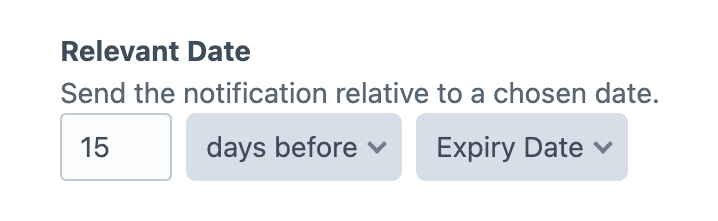
Fires a chosen number of days before, on, or after a date, such as an entry's Post Date or Expiry Date. Available for every event type.
When a new RSS feed item is found
Fires once for each new item that appears in an external RSS, Atom, or JSON feed. Available under the RSS/JSON Feed event type.
Setting it up
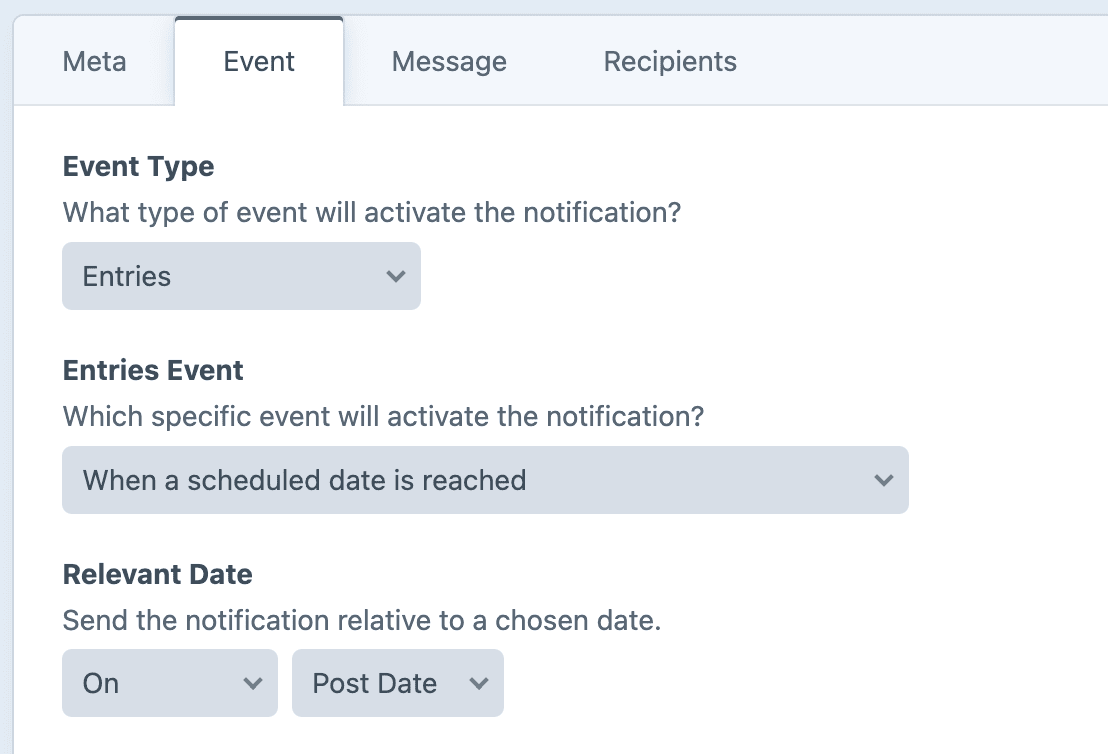
On the Event tab of a notification, choose an event type, then select one of the scheduled events from the event dropdown.
"When a scheduled date is reached" shows which date to compare against, offset by the specified number of days.
For a scheduled notification to fire, you also need to run the schedule on a recurring basis.
How it fires
Each notification keeps track of the last time it was run.
When the schedule runs, notifications are sent for all elements whose date occurred since the previous run.
After running, the last runtime is updated, and the cycle repeats. Each element fires exactly once.