Configuring LinkedIn
If using LinkedIn to publish posts, you'll first need to create a LinkedIn app, then connect each account you want to post from.
Refresh the Connection (every 60 days)
Unlike other social media, LinkedIn requires you to generate a fresh token on a regular basis. LinkedIn access tokens expire about every 60 days, so you may occasionally need to reconnect.
Get started with LinkedIn
Register as a LinkedIn developer
App required
Already created a LinkedIn app? Skip ahead to "Register the redirect URL".
Go to the LinkedIn Developer Portal and sign in with the LinkedIn account you want to manage the app from. Any account can create an app, but you'll need to be an admin of a LinkedIn Page to finish setup.
Create a LinkedIn app
- Click Create app.
- Enter an App name. This is shown during authorization, so name it something recognizable to your employees (like your company name).
- Under LinkedIn Page, search for and select a Page you administer. Every app must be tied to a Page.
- Upload an App logo (like your company logo, to align with the App name).
- Accept the legal agreement.
- Click Create app.
A LinkedIn Page is required
LinkedIn won't let an app exist without an associated Page, and you must be an admin of that Page. Personal profiles don't count. If you don't have a Page yet, create one first, then come back.
Verify the app
LinkedIn needs to confirm that you really do manage the Page you picked.
- Open the app's Settings tab.
- Next to the associated Page, click Verify.
- Click the Generate URL button to generate a URL.
- Copy the URL.
- If you are an authorized admin of the LinkedIn Page, open the URL in a new tab of your browser.
- Click Verify to confirm.
Add the products
Products are how LinkedIn grants the permissions Notifier needs.
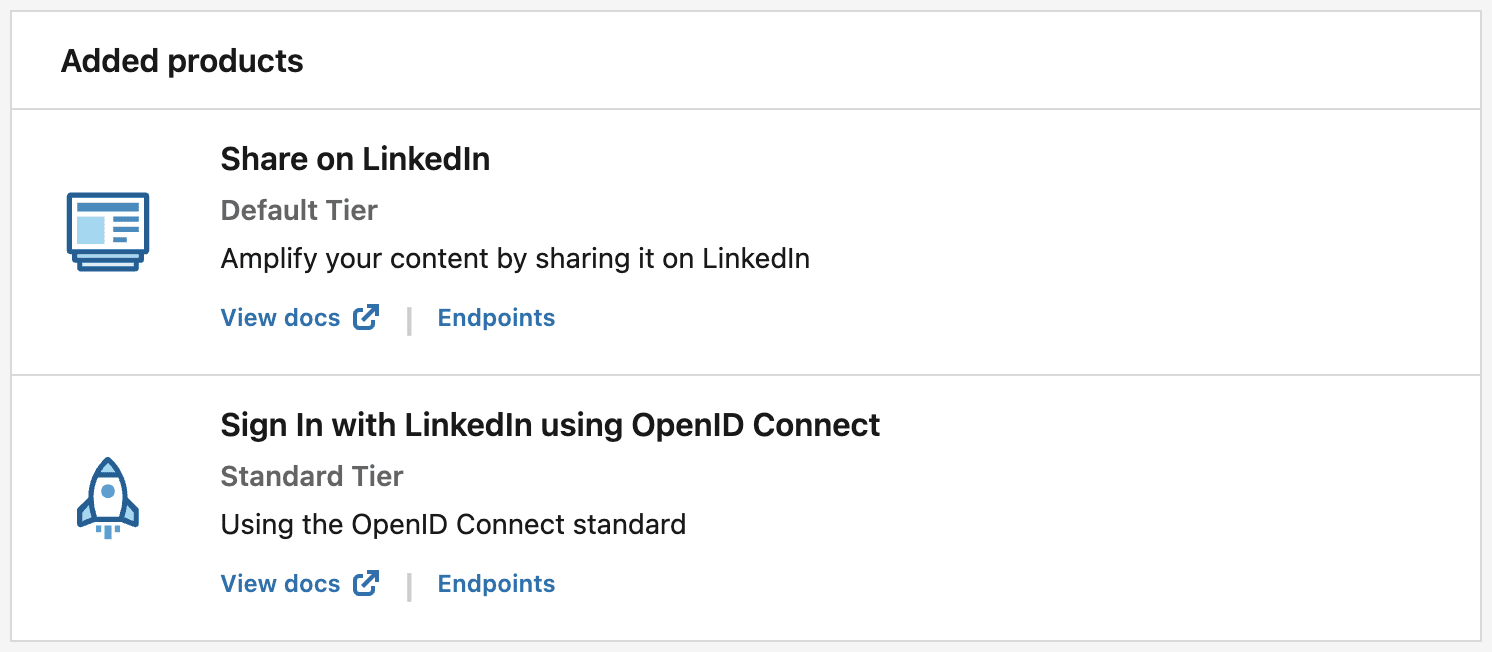
- Open the Products tab.
- Find Share on LinkedIn and click Request access.
- Find Sign In with LinkedIn using OpenID Connect and click Request access.
Together, they let Notifier post to your member profile.
Copy your app credentials
- Open the app's Auth tab.
- Under Application credentials, copy both:
- Client ID
- Primary Client Secret
- Store them in your
.envfile:
LINKEDIN_CLIENT_ID="..."
LINKEDIN_CLIENT_SECRET="..."
Protect your credentials
Anyone with these two values can post as your app. Keep each in a .env variable so the secrets never end up in your project config.
Register the redirect URL
When connecting, LinkedIn will need to ping a callback URL on your website.
- In the Craft control panel, go to Settings → Plugins → Notifier → LinkedIn.
- Copy the redirect URL shown at the top of the page.
- In the LinkedIn app, open the Auth tab.
- Scroll to OAuth 2.0 settings.
- Find Authorized redirect URLs for your app, and click Add redirect URL.
- Paste the URL you just copied from Craft.
- Click the Update button to save.
Connect Notifier to LinkedIn
- In the Craft control panel, go to Settings → Plugins → Notifier → LinkedIn.
- Set the Client ID field to its
.envreference (e.g.$LINKEDIN_CLIENT_ID). - Set the Client Secret field to its
.envreference (e.g.$LINKEDIN_CLIENT_SECRET). - Click Save.
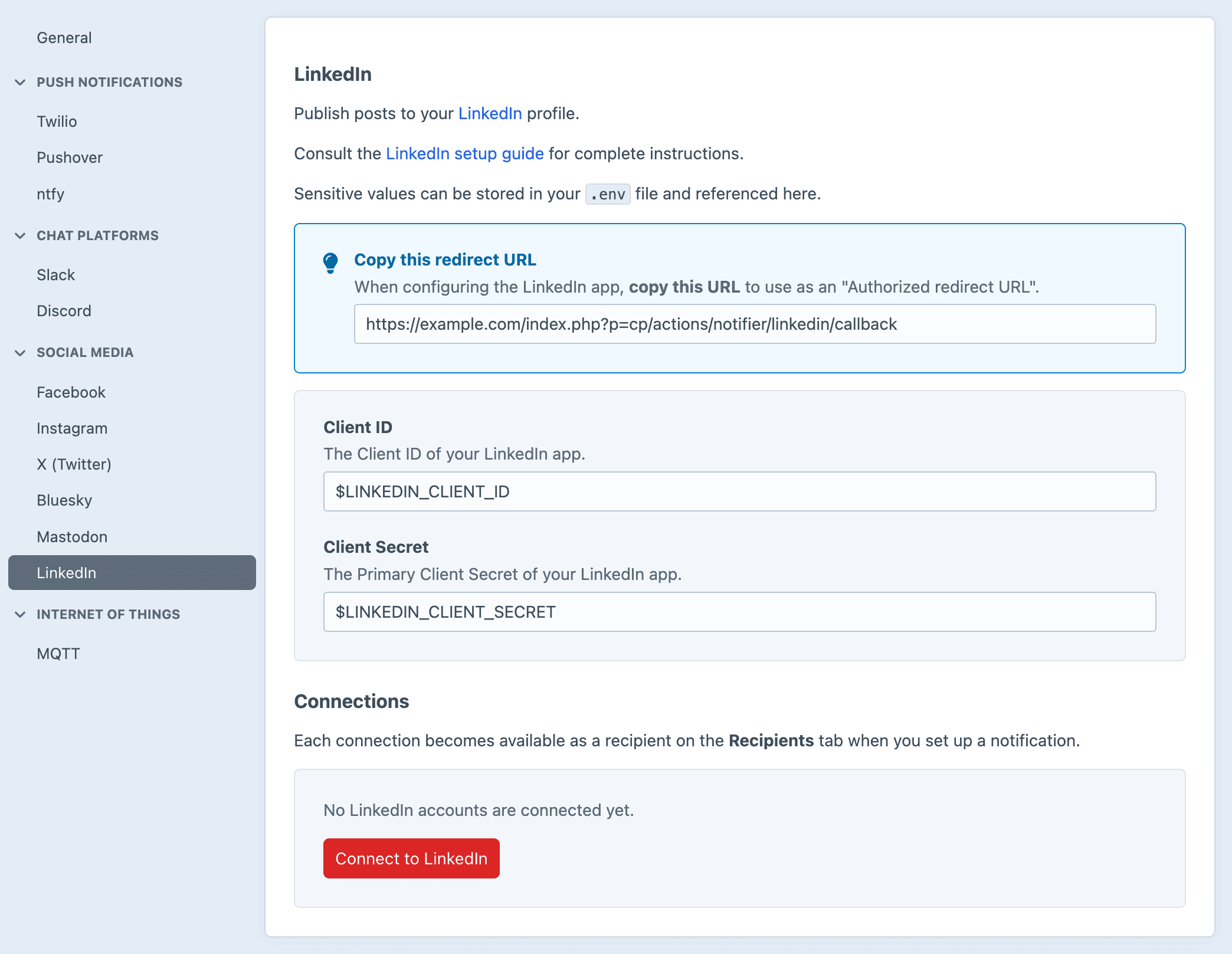
- After saving, click Connect to LinkedIn.
- You'll be sent to LinkedIn to approve the app. Log in and click Allow.
- You'll then be returned to the settings page, with a newly established connection.
Each connection will be available on the Recipients tab when configuring a notification.
Reconnecting
LinkedIn access tokens expire after about 60 days. When a connection is getting close, its status on the settings page changes to Reconnect needed. Click Connect to LinkedIn again to refresh it, no other setup required.