
Configuring Mastodon
If using Mastodon to publish posts, you'll first need an access token for each account you want to post from.
Create an access token
- Log into the account on its Mastodon instance.
- Open Preferences → Development → New application.
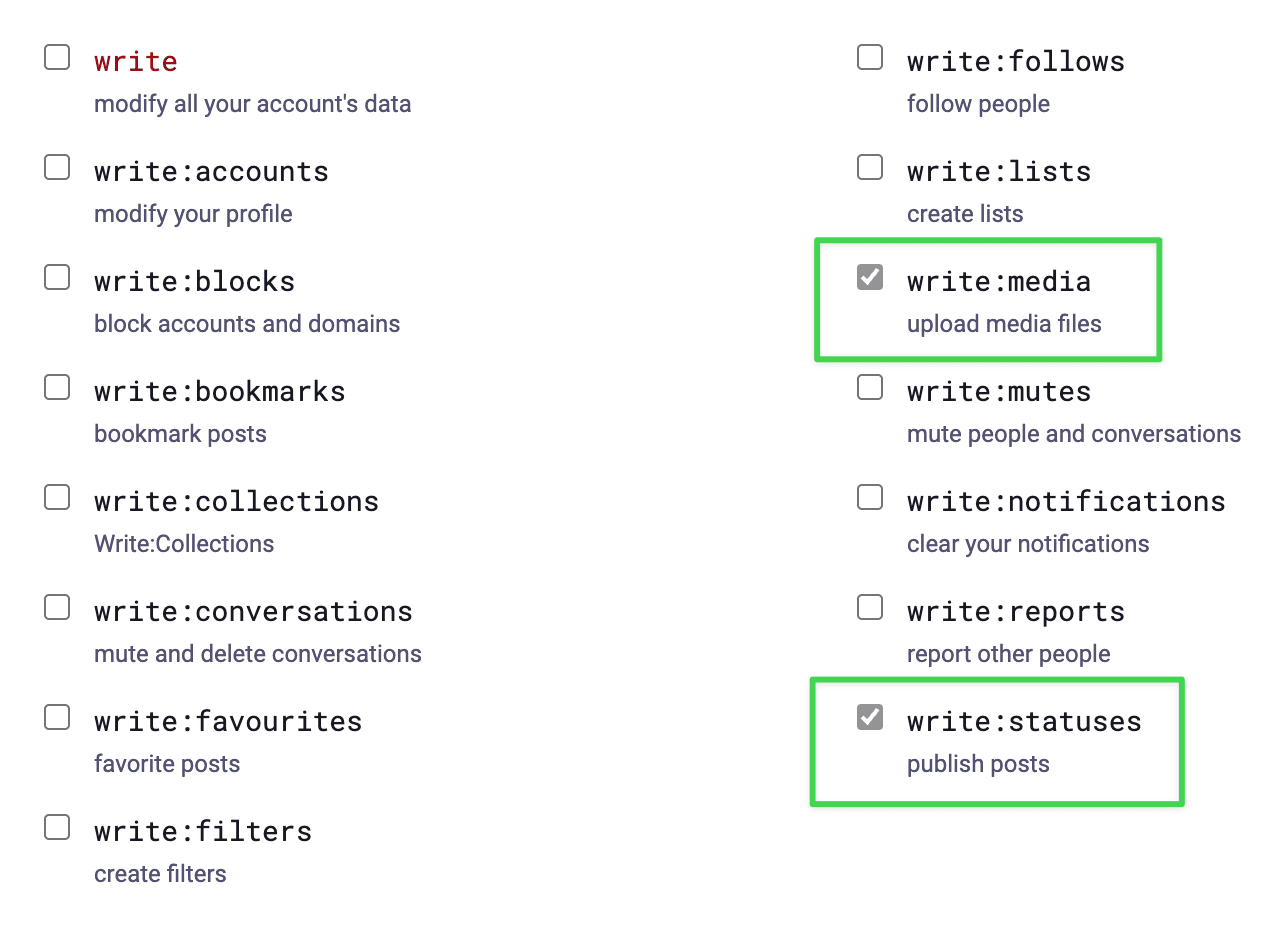
- Give the application a name, and grant it the following scopes:
write:statuses(for posting)write:media(to attach images)
- Save, then open the application and copy Your access token.
Protect the Access Token
Anyone who knows the access token can post as the account. Treat it like an API key. Keep it in a .env variable so the secret never ends up in your project config.
Configure Notifier
First, store each access token in your .env file:
MASTODON_ACCESSTOKEN="..."
# ... add all relevant access tokens
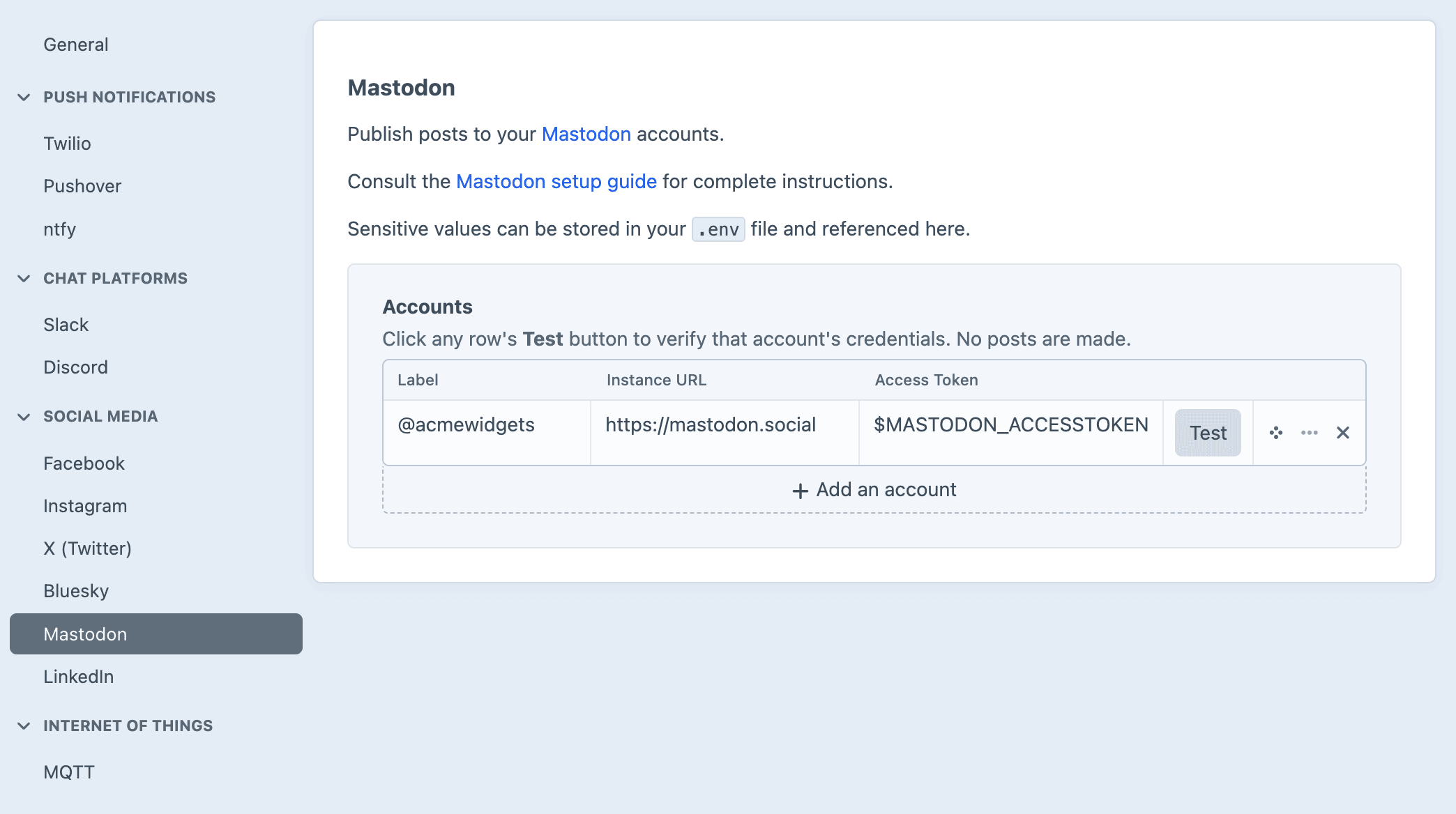
Then in the Craft control panel, go to Settings → Plugins → Notifier → Mastodon to:
- Add one or more accounts with a friendly label (e.g.
@[email protected]). - In the Instance URL field, enter the account's instance (e.g.
https://mastodon.social). - In the Access Token field, reference the
.envvariable (e.g.$MASTODON_ACCESSTOKEN). - Hit the Test button next to each account to verify its credentials.
Sending from multiple Mastodon accounts
Each account needs its own token. Add a separate row in Settings → Mastodon for each account, pairing its instance URL with the matching token. Accounts on different instances are fully supported.
A single notification can simultaneously post from multiple accounts, or you can set up separate notifications which post from different accounts.