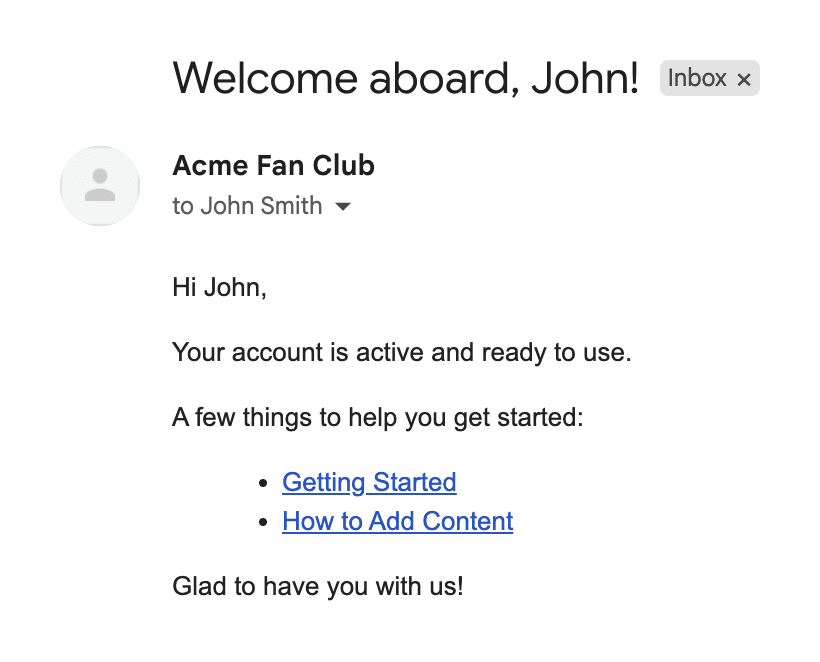
When a User is activated, send them a "Welcome" email
Greet new members with a friendly message and helpful information.
This guide explains how to send a personalized email to a new User when their account is activated.
Confirm Craft can send email
- If you haven't already, fill out your mail settings under Settings → Email.
- Hit the Test button and confirm the message actually lands in your inbox.
Notifier sends email through Craft's own mailer, so anything broken here will break the notification too.
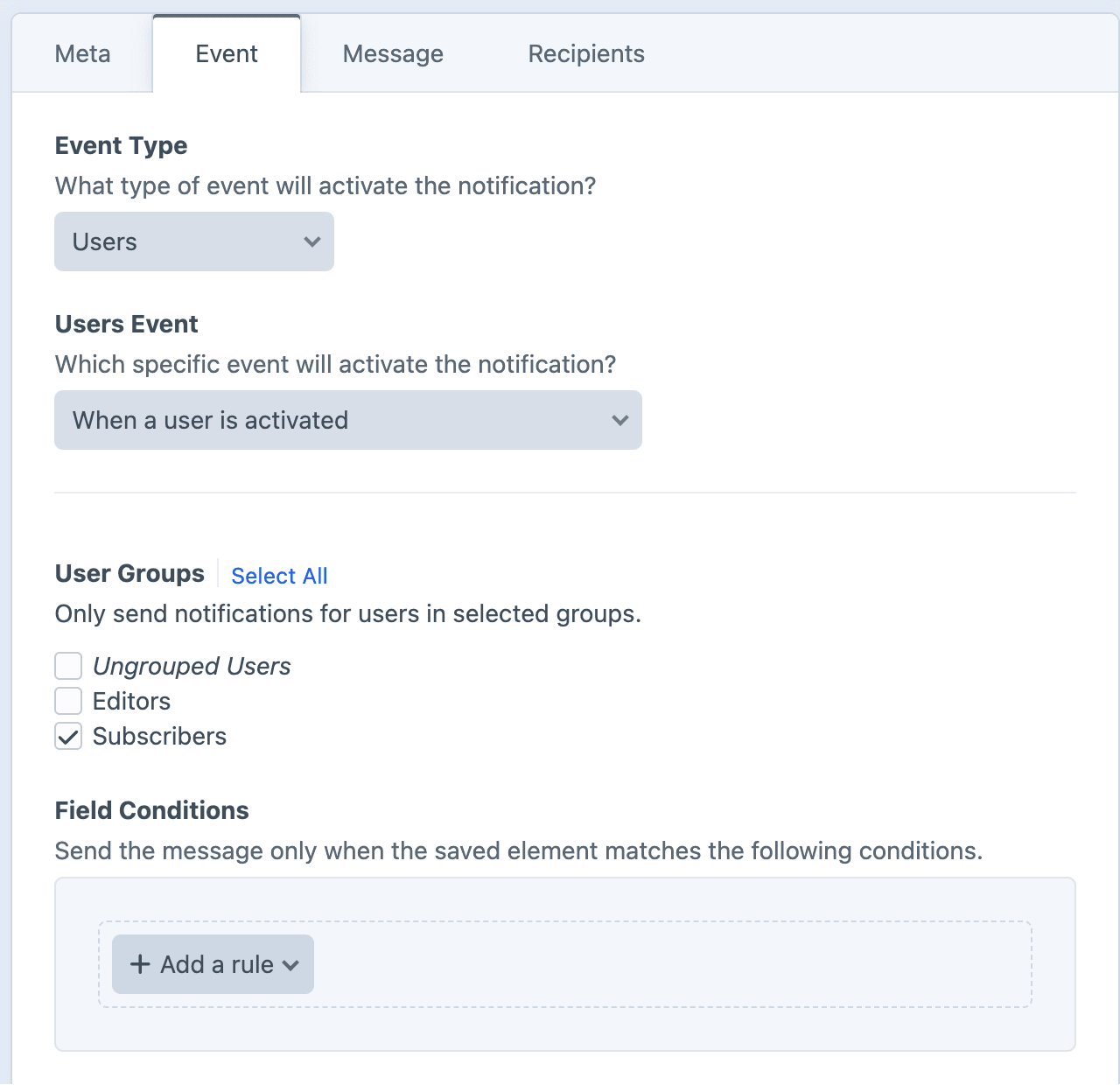
Select the "When a user is activated" event
- Create a new notification and name it.
- Set the Event Type to Users.
- Set the Users Event to When a user is activated.
- Check any User Groups which should receive the greeting message.
Write the welcome email
Feel free to customize
However you configure the message is up to you. These are just some recommendations to get you started.
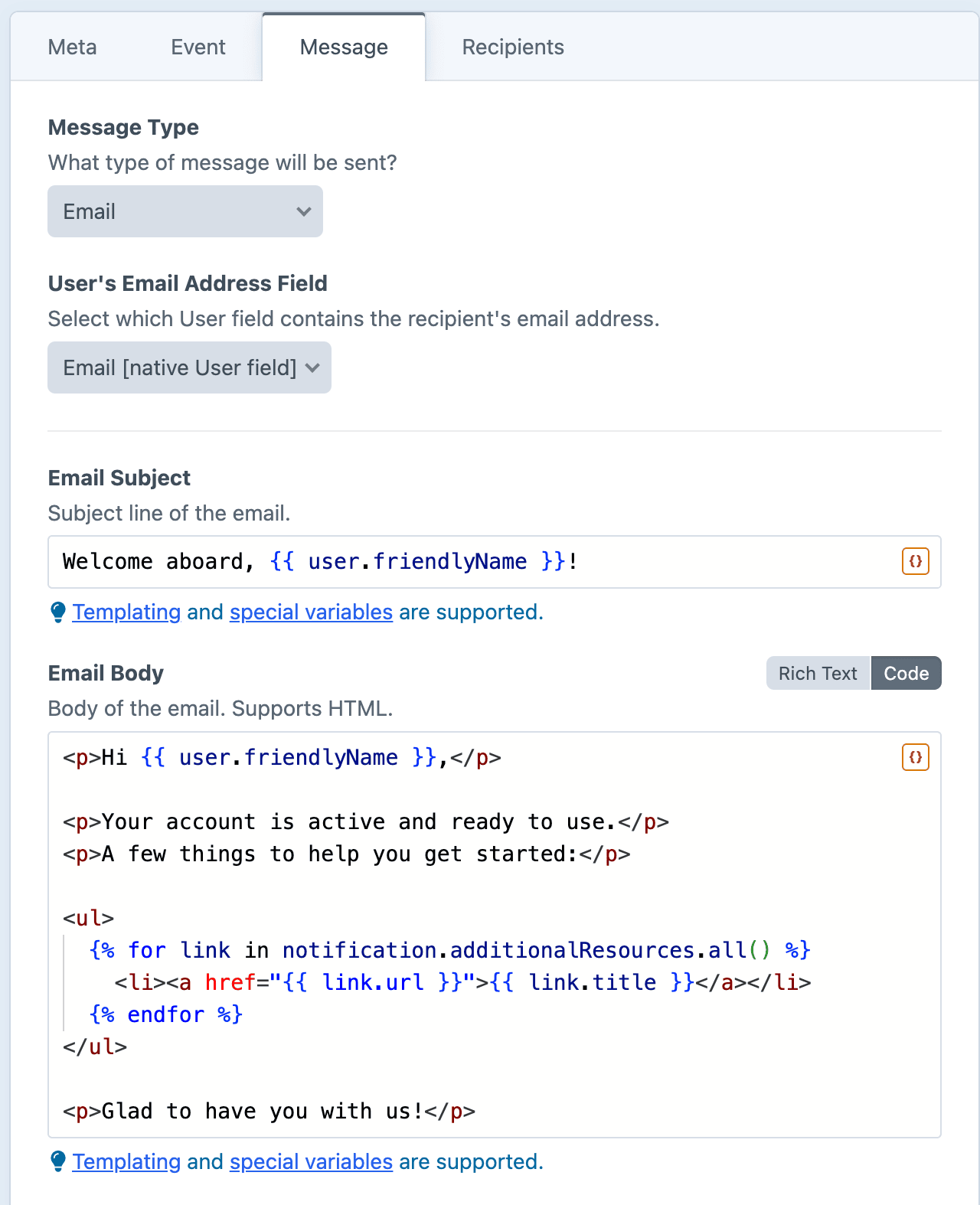
- Set the Message Type to Email. Dynamic fields will have access to element variables.
- Leave User's Email Address Field on the default native Email field.
- Write a brief and friendly Email Subject:twig
Welcome aboard, {{ user.friendlyName }}! - Switch the Email Body to Code mode, and greet them with some helpful information to get started:twig
<p>Hi {{ user.friendlyName }},</p>

<p>Your account is active and ready to use.</p>
<p>A few things to help you get started:</p>

{# Use custom fields to add dynamic details #}
<ul>
  {% for link in notification.additionalResources.all() %}
    <li><a href="{{ link.url }}">{{ link.title }}</a></li>
  {% endfor %}
</ul>

<p>Glad to have you with us!</p>
Custom Fields
In the snippet above, notification.additionalResources is an example of a custom field.
To separate your clients from the code, you can create custom fields for them on the Meta tab.
Send the message to the new User
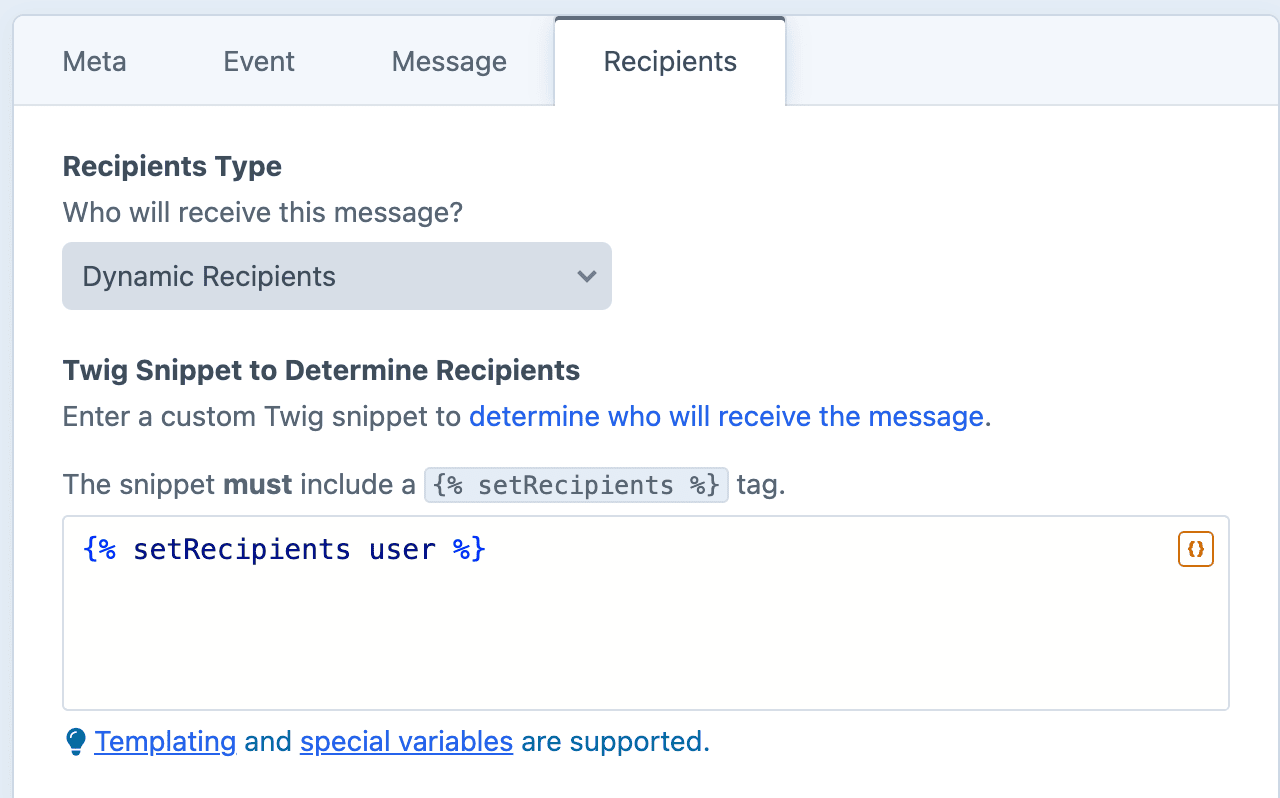
In order to target the brand-new User, use Dynamic Recipients.
- On the Recipients tab, set the Recipients Type to Dynamic Recipients.
- For the Twig Snippet to Determine Recipients, simply specify the new
user:twig{% setRecipients user %}
The user email address will be extracted and sent a personalized copy of the message.
Skip people who aren't actually new
Protect against mistakenly sending the welcome message to a user being re-activated.
Check whether the user already has a lastLoginDate, and use skipMessage if they've previously logged in.
Put this check at the very top of the Email Body, before everything else:
{% if user.lastLoginDate %}
    {% skipMessage "Not a new user, they've logged in before." %}
{% endif %}

{# ...the rest of your message... #}
Anyone who has previously logged in gets skipped, and the skip is recorded in the notification log.
Save and finish!
Congrats, you've finished setting up the Notification!
"Whenever a User is activated, Craft will email them a personalized welcome message."