
Manual Sending
Most notifications fire automatically when a Craft event occurs. Manually sending is different. The notification waits until you send it yourself, against a specific element of your choosing.
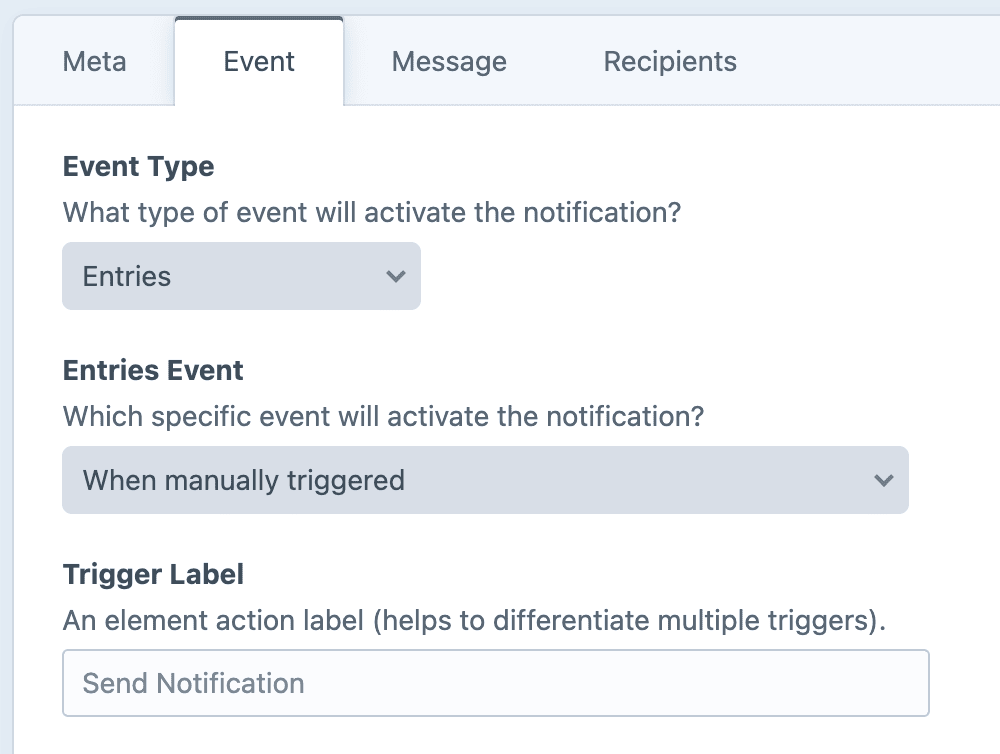
This is useful whenever a message shouldn't be tied to a save, a delete, or any other automatic event. Think of a "resend the welcome email" notification, or a "flag this entry for the team" notification. The message is ready to go, but it sends only when you say so.
Setting it up
Manual sending is available for every event type. On the Event tab of a notification, choose an event type (Entries, Assets, Users, etc), then select "When manually triggered" from the event dropdown.
Once you do, a Trigger Label field will appear. Use this label to differentiate manual triggers from each other when you have more than one trigger on the same element type. The label appears on both the element index page, and an individual element's edit screen.
For example, you might have two manual notifications for entries: one to "Flag for review" and another to "Submit for approval". The labels help you tell them apart when sending.
Sending a notification
Once a manually sent notification is set up, there are three ways to send it:
Via an element's edit screen
If you did not specify a custom Trigger Label, the link or button will read "Send Notification".
Open any element the notification applies to, and look near the top of the screen.
- Craft 5: Look in the action menu (the ⋮ button).
- Craft 4: No action menu exists, so it appears as a separate button.
Since the message goes out to real recipients, you'll then be prompted with a confirmation message before sending.
Via the element index
On the elements index page, select one or more elements. Then choose "Send Notification" (or whatever you set the Trigger Label to) from the actions menu at the bottom of the page. The notification will be sent once for each selected element.
Elements which do not meet the notification's filters will be skipped and logged.
Via the console
Send a notification for a single element from the command line:
php craft notifier/manual/send <notificationId> <elementId>Pass the ID of the notification and the ID of the element. This is handy for scripts, deploy hooks, or an external scheduler.
Permissions
Manually sending notifications is only possible for users with the Send manual notifications permission enabled.
Twig variables
Almost all special variables are available in the message body, exactly as they are for automatic events.
No original
Because a manual send is not a save, there is no "before" state. The original variable will be null.
Examples
Flag a hand-picked entry for the team
{{ currentUser.fullName }} flagged "{{ entry.title }}" for review.

Take a look: {{ entry.cpEditUrl }}
Resend a welcome message to a specific user
Hi {{ user.friendlyName }},

Welcome aboard. Here is everything you need to get started...
Share a specific asset with the team
{{ currentUser.fullName }} shared "{{ asset.filename }}".

Grab it here: {{ asset.url }}