
Configuring MQTT
If using MQTT to publish messages, you'll first need:
- A broker for Notifier to connect to.
- One or more topics to publish messages to.
Choose a broker
Notifier works with any standard MQTT broker, including:
For Testing Only
You can use a free public test broker like test.mosquitto.org if you're just experimenting.
Configure Notifier
If your broker requires sensitive credentials, store them in your .env file:
dotenv
MQTT_USERNAME="..."
MQTT_PASSWORD="..."
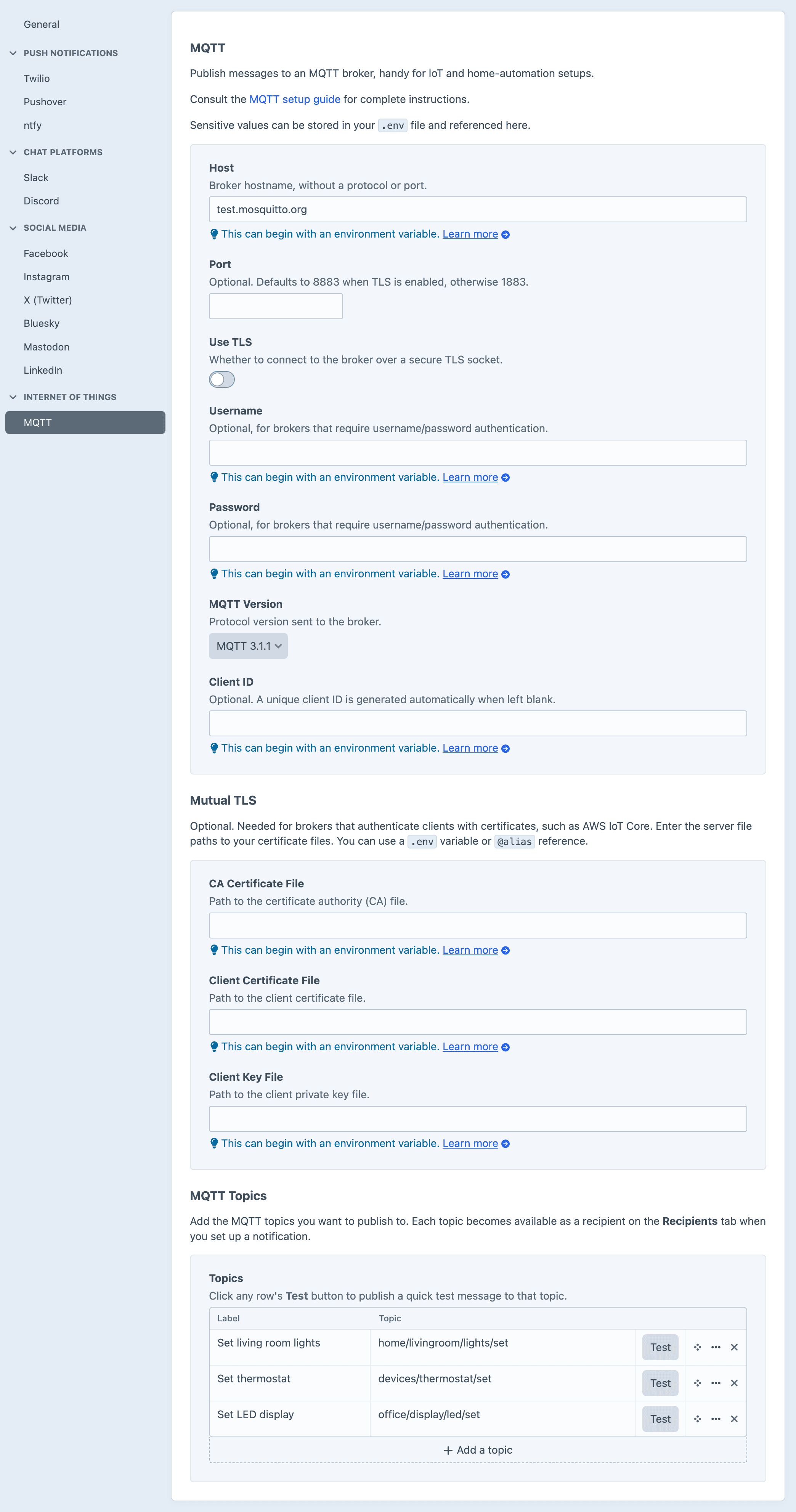
Then in the Craft control panel, go to Settings → Plugins → Notifier → MQTT to:
- Enter the broker's Host and Port.
- Enable Use TLS for a secure connection.
- Set a Username and Password if needed (reference the
.envvariable, e.g.$MQTT_PASSWORD). - Optionally choose the MQTT Version and a Client ID.
- For certificate-authenticated brokers like AWS IoT Core, fill in the Mutual TLS certificate paths.
- Add one or more recipient topics.
Testing
You'll also find a simple Test button next to each topic in the settings.
Clicking it publishes a test message to that topic, to confirm each topic configuration is valid.