
When a new User registers, email Admins for approval
Review new User accounts before they are activated.
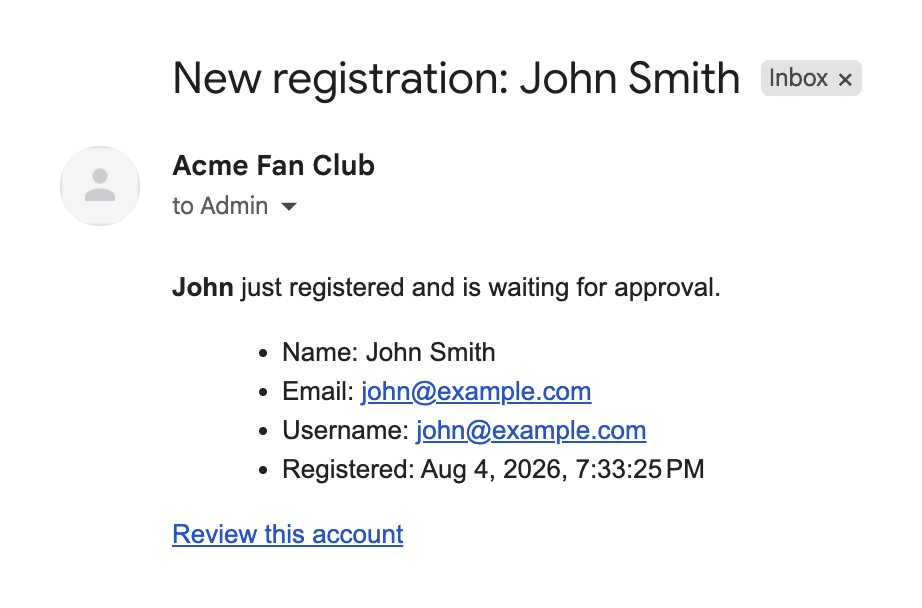
This guide explains how to email your Admins when someone registers, with a direct link to review and activate the new account.
Confirm Craft can send email
- If you haven't already, fill out your mail settings under Settings → Email.
- Hit the Test button and confirm the message actually lands in your inbox.
Notifier sends email through Craft's own mailer, so anything broken here will break the notification too.
Select the "When a new user is created" event
- Create a new notification and name it.
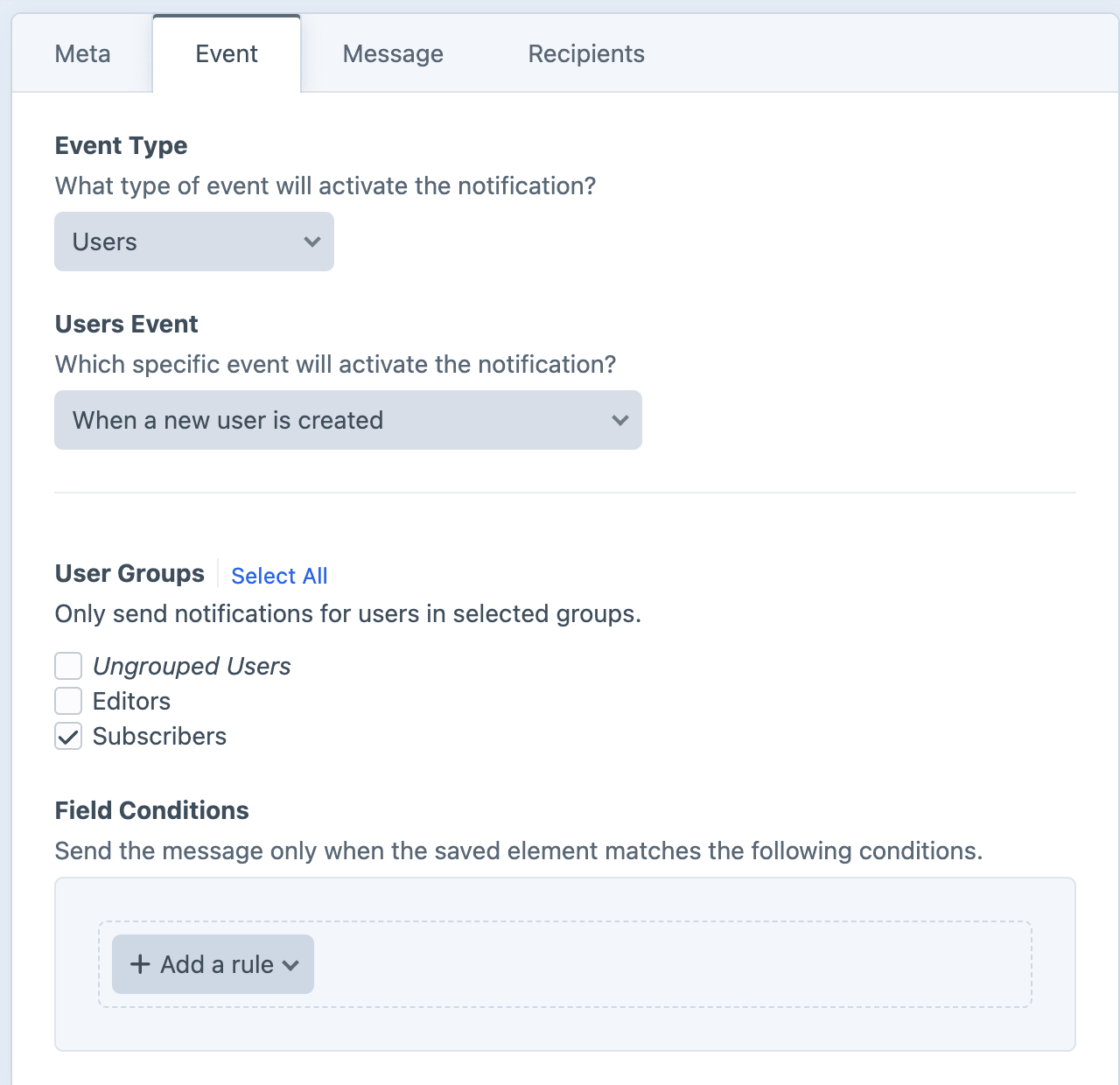
- Set the Event Type to Users.
- Set the Users Event to When a new user is created.
- Check any User Groups which need to be monitored.
Check at least one group
If no groups are checked, no email will be sent. Check Ungrouped Users if your site doesn't assign a group during registration.
No user groups?
If your site has no user groups, an approval email will be sent for all new Users.
Write the approval email
Feel free to customize
However you configure the message is up to you. These are just some recommendations to get you started.
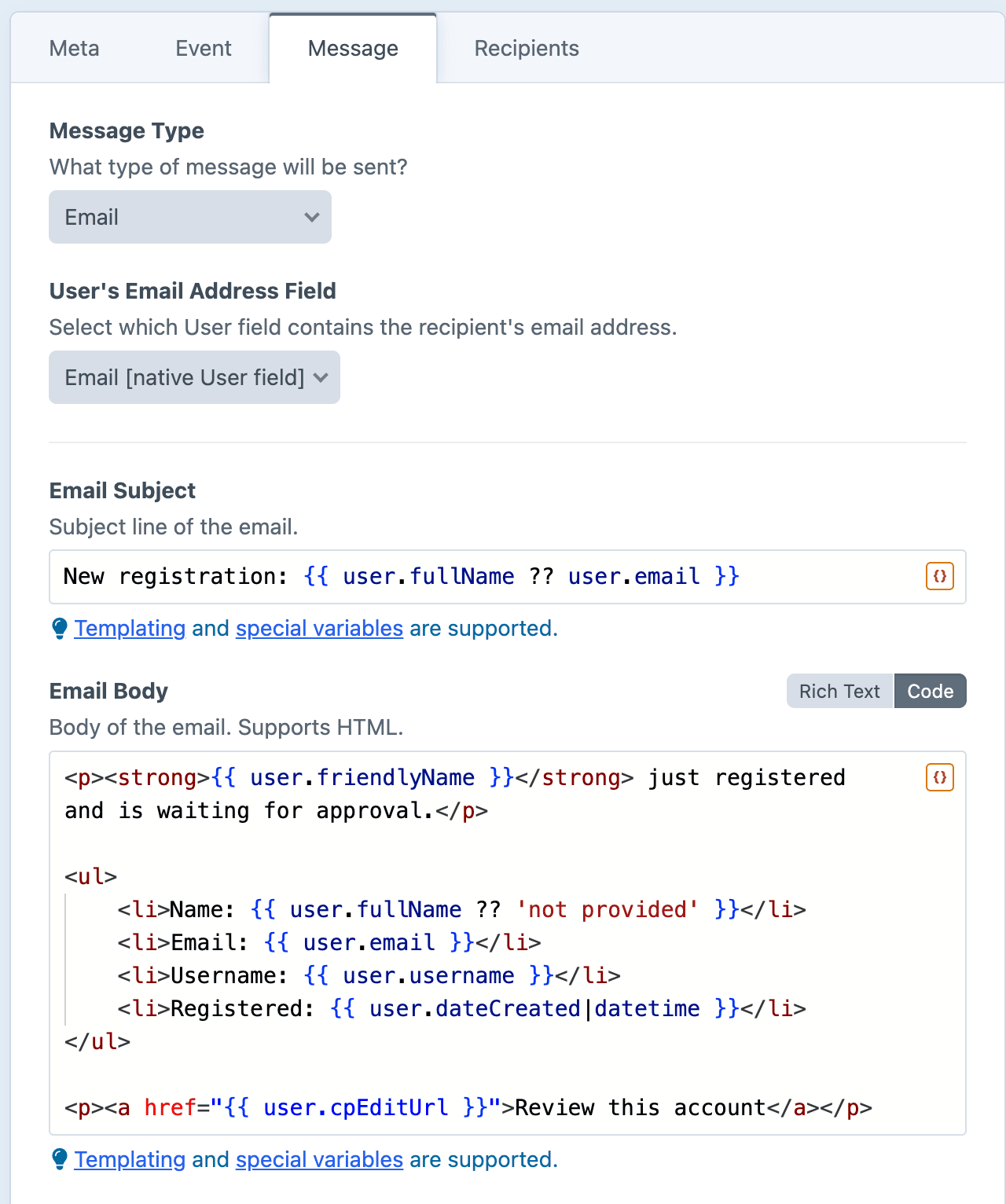
- Set the Message Type to Email. Dynamic fields will have access to element variables.
- Leave User's Email Address Field on the default native Email field.
- For the Email Subject, name the person who needs approval:twig
New registration: {{ user.fullName ?? user.email }} - Switch the Email Body to Code mode, and give your Admins everything they need to make a call:twig
<p><strong>{{ user.friendlyName }}</strong> just registered and is waiting for approval.</p>

<ul>
    <li>Name: {{ user.fullName ?? 'not provided' }}</li>
    <li>Email: {{ user.email }}</li>
    <li>Username: {{ user.username }}</li>
    <li>Registered: {{ user.dateCreated|datetime }}</li>
</ul>

<p><a href="{{ user.cpEditUrl }}">Review this account</a></p>
Send the message to Admins or individual Users
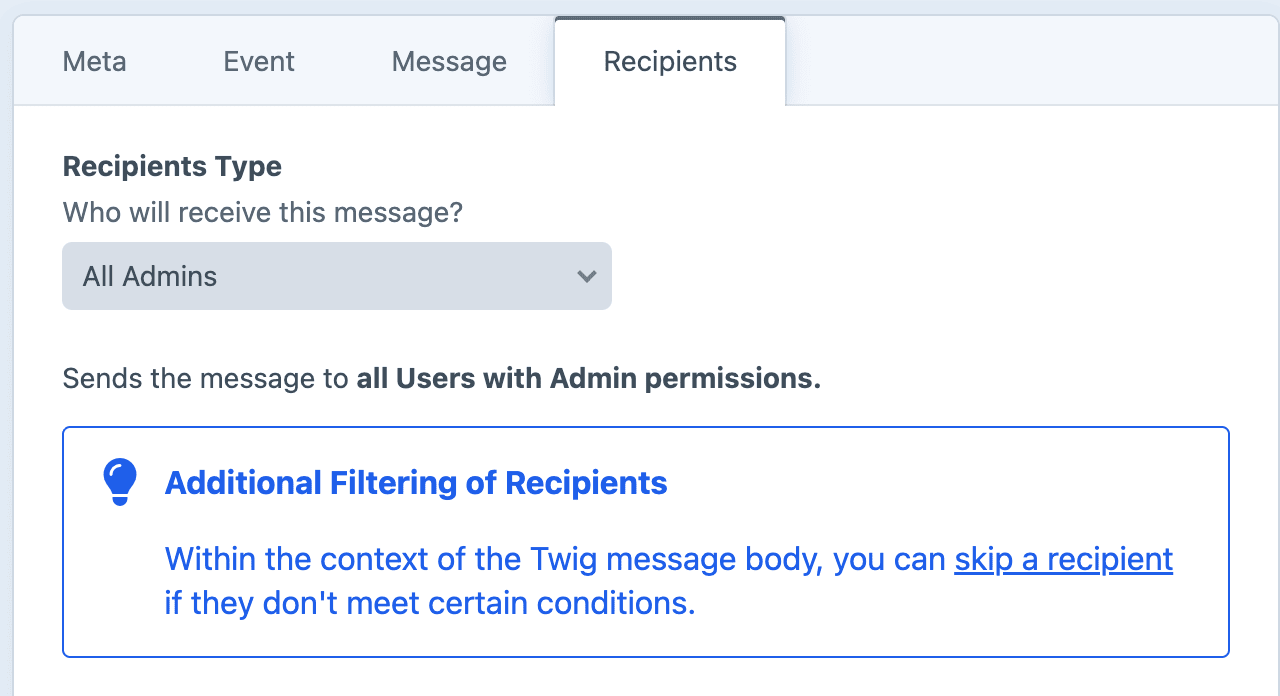
On the Recipients tab, set the Recipients Type to All Admins.
If you need greater flexibility, set the Recipients Type to Only selected User(s) and specify which Users should receive the message.
Save and finish!
Congrats, you've finished setting up the Notification!
"Whenever a new User registers, Craft will email your Admins a link to review and activate the account."
How an Admin approves the account
We have this link within the message body to Admins:
{# Link to view User account #}
{{ user.cpEditUrl }}- Clicking that link will take the Admin to the User's account page in the Craft control panel.
- From there, the Admin can then review the new user's details.
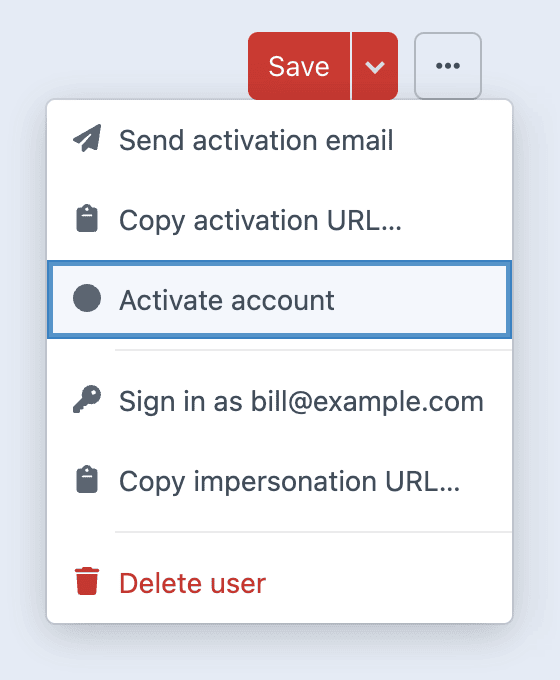
- Assuming everything looks good, the Admin selects Activate account in the status menu.
Pair this with a welcome email!
To fully welcome aboard a new user, you may also want to send a welcome email when a User is activated.
The welcome message won't be sent until an Admin has reviewed the new User and activated the account.