
Configuring Slack
If using Slack to post channel messages, you'll first need to create a Slack app and grant it the right scopes. Notifier uses the chat.postMessage Web API, which supports per-message icon, emoji, and username overrides.
Create a Slack app
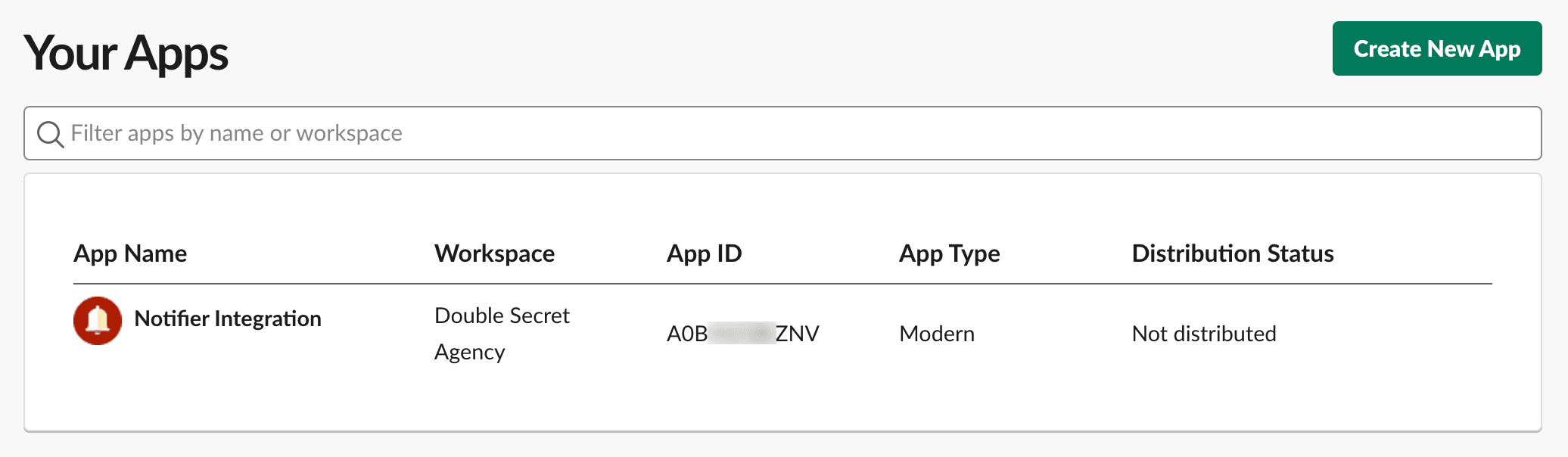
- Go to api.slack.com/apps and click Create New App → From scratch (or pick an existing app).
- In the sidebar, open OAuth & Permissions.
- Under Scopes → Bot Token Scopes, add the following three scopes:
chat:writeto post messages.chat:write.customizefor per-message icon, emoji, and username overrides.chat:write.publicto post to public channels the bot has not joined.
- Scroll up and click Install to Workspace (or Reinstall to Workspace if updating an existing app).
- Once installed, copy the Bot User OAuth Token. It starts with
xoxb-.
Protect the Bot Token
Anyone who knows the bot token can post as the app to any channel the bot has access to. Treat it like an API key. Keep it in a .env variable so the secret never lands in your project config.
Find your channel IDs
To find the channel ID (e.g. C01234ABCD):
- Open the channel in Slack.
- Click the channel name at the top to open channel details.
- Scroll to the bottom of the panel. There's a Channel ID field.
Alternatively, right-click the channel in the sidebar and choose Copy link. The channel ID is the last path segment.
For private channels, also invite the bot:
/invite @YourAppNamePublic channels don't require an invite because of the chat:write.public scope.
Configure Notifier
First, store the bot token and channel IDs in your .env file:
SLACK_BOT_TOKEN="xoxb-..."
SLACK_CHANNEL_ENGINEERING="C01234ABCD"
SLACK_CHANNEL_SALES="C05678EFGH"
# ... add all relevant channel IDs
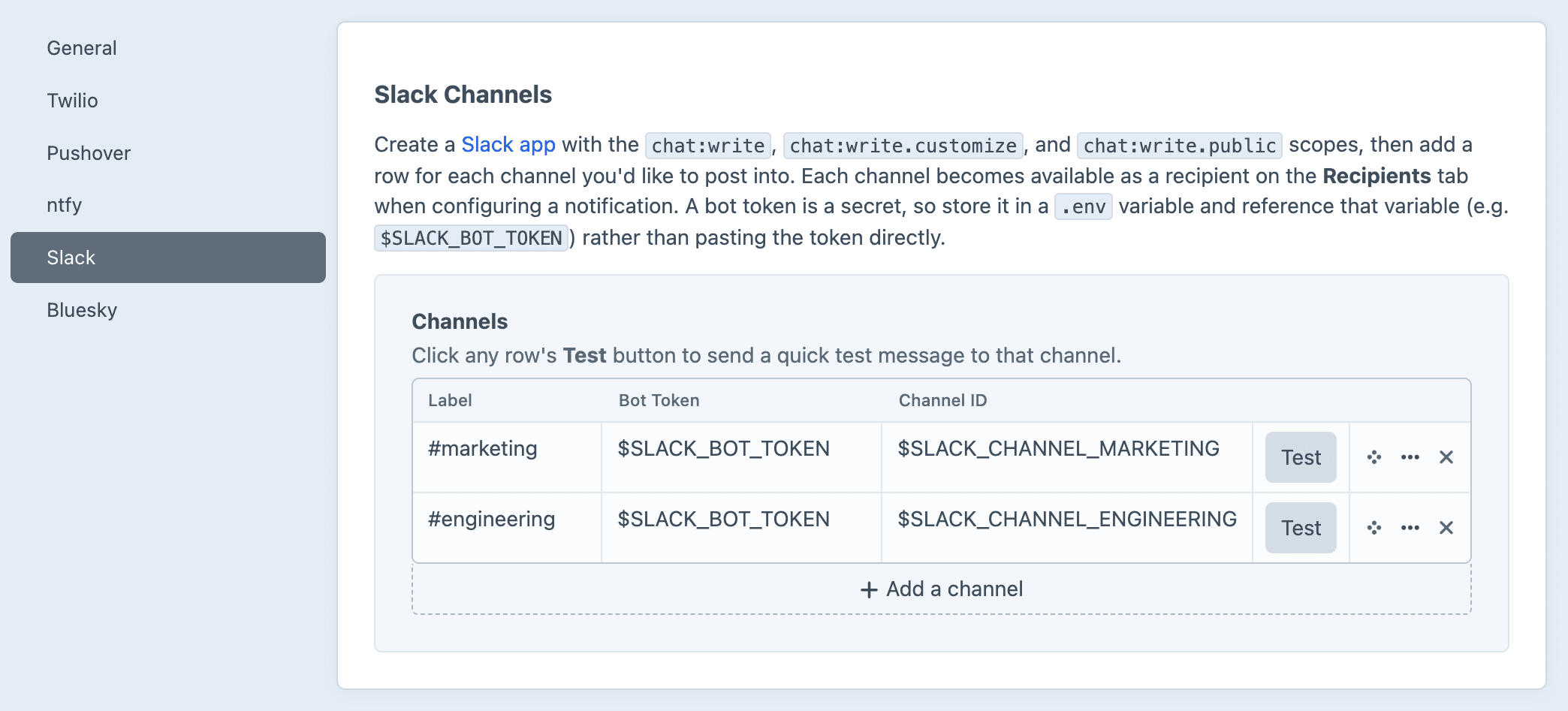
Then in the Craft control panel, go to Settings → Plugins → Notifier → Slack to:
- Add one or more channels with a friendly label (e.g.
#engineering). - In the Bot Token field, reference the
.envvariable (e.g.$SLACK_BOT_TOKEN). - In the Channel ID field, either paste the channel ID directly (
C01234ABCD) or reference a.envvariable ($SLACK_CHANNEL_ENGINEERING). - Hit the Test button next to each channel to confirm it delivers to the right place.
Sending to multiple Slack channels
One bot token can post to as many channels as the bot has access to. Add a separate row in Settings → Slack for each channel, using the same bot token reference with a different channel ID and label.
A single notification can simultaneously post to multiple channels, or you can set up separate notifications which post to different channels.
Multiple Slack workspaces
If you need to post to channels in different Slack workspaces, create a separate Slack app per workspace and store each workspace's bot token in its own .env variable. Each row in Settings → Slack can then reference the appropriate token.